
Download Haunted XR
Welcome to the Haunted XR download guide, your first step into a world where imagination speaks back. Ahead are simple, clear instructions that will bring Tickle, our mischievous interactive spirit, directly into your hands. Follow them, and you won’t just install an app, you’ll open a doorway. Push the boundaries. Embrace the unknown. This is where courage, character, and empowerment meet play.
In just a few moments, you’ll be talking with Tickle, discovering the magic of a living narrative crafted just for you. The future is calling. Heed the call, and let’s make history together.

Haunted XR is available only on Android.
IOs version coming soon!
Open Website
If you haven’t already, open this website on your Android device and navigate back to this page.
Start Downloading
- Press the “Press Me” button to start the download process.
- A window may pop up asking permissionto download
- Select the “Download” option
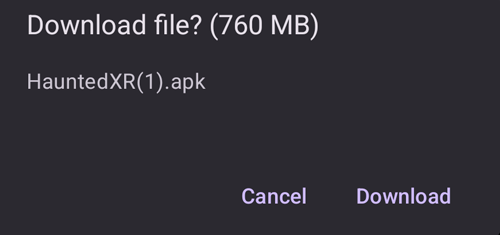
Google Permission
- Google may may ask you for permission to install. You will have to change your settings.
- Select “settings” in the pop-up
- Google Settings window will appear.
- Select the “Allow From This Source” slider.
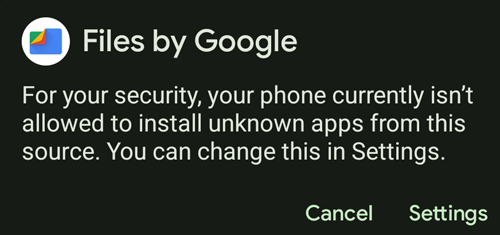
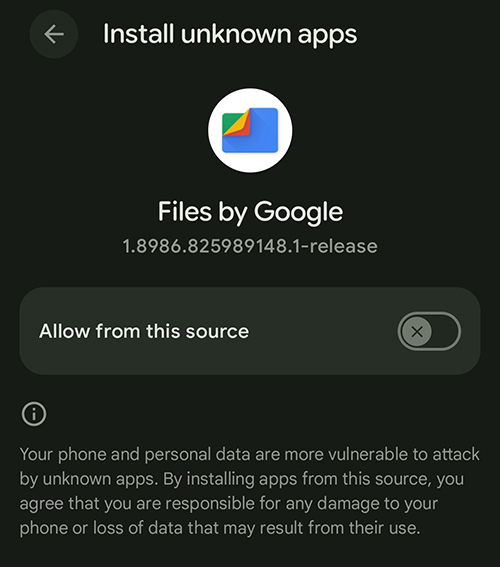
Resume Installation
- An “Installing” window will appear
- Ignore and allow to finish installing
- An “Installation Confirmation” window may appear.
- Select “Install”
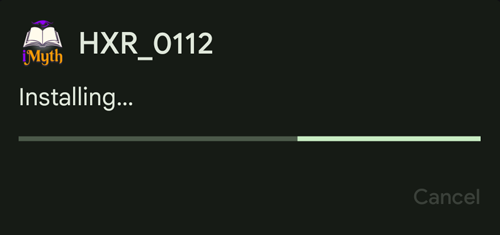
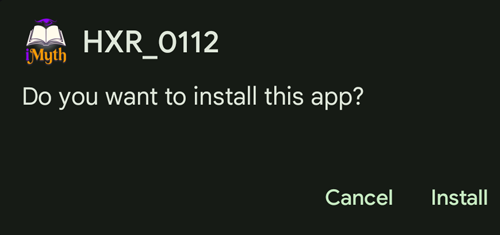
Open Haunted XR
- A window asking the play Haunted XR will appear.
- Select “Open”
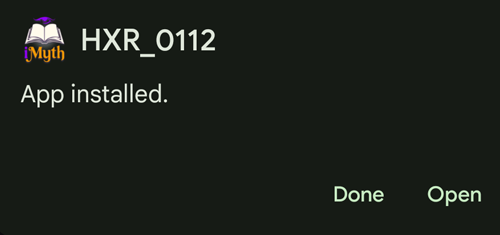
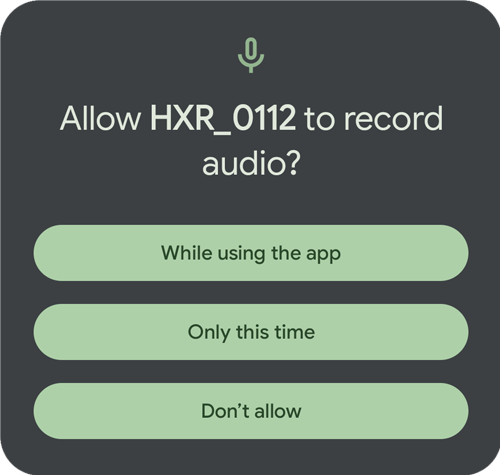
Allow Android Audio
- Your Android will ask for audio permission.
- Select “While Using the app”
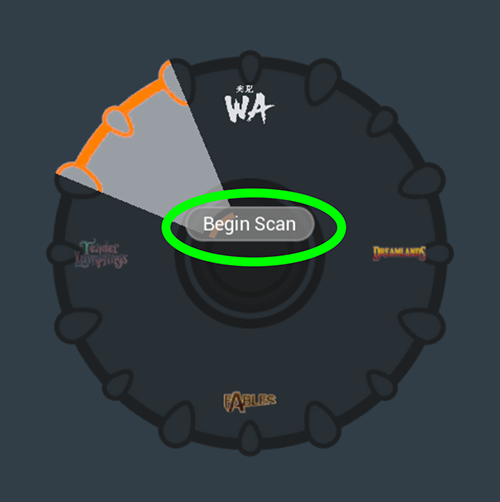
Start AR Scanning
- A dial will appear on your screen
- Select “Begin Scan” button
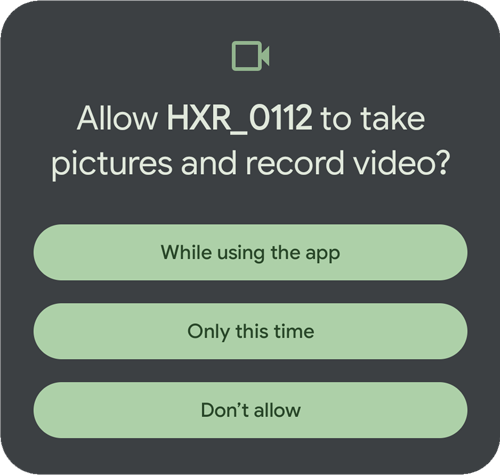
Allow Android Video
- Your Android will ask for video permission.
- Select “While Using the app”
Scan You Environment for AR
- Your environment will appear in the phone window.
- Your device is scanning the environment.
- Slowly move your device to get a good scan
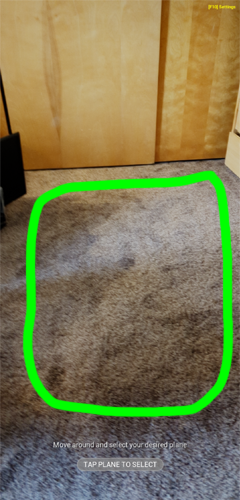
Select the plane to place Tickle
- Once your environment has been scanned in, your device will ask you to “Tap Plane to Select” .
- Tap somewhere on your device where you think a 5’2″ woman will fit
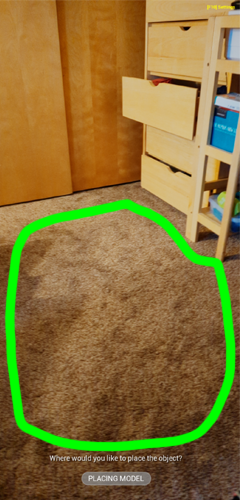
Tap in the same location to place Tickle
- The bottom of your device’s screen will display, “Placing Model”.
- Tap in roughly the smae location as last time to place Tickle
Talk with Tickle
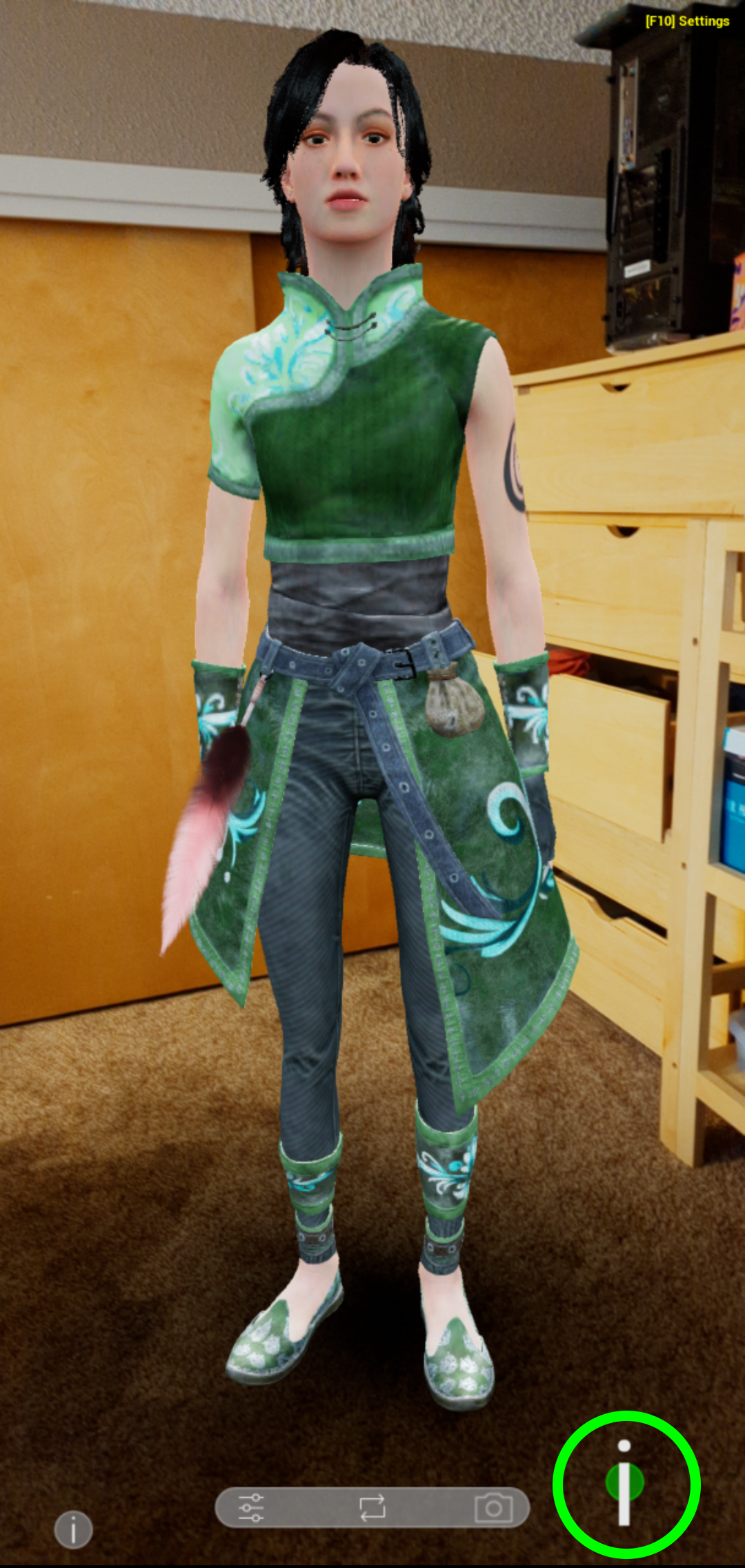
- Tickle will appear on your device screen.
- If this is your first time, it may take her up to 20 seconds to appear.
- Hold down “i” button asking a question or making a statement to Tickle.
- She will respond after you release.
- If this is you first time, it may take up to 10 seconds for her to respond.
- Enjoy your interaction with Tickle!
Future Conversations
- Swipe up on your Android device to end your conversation.
- In all future conversations:
- You may launch Directly from you device.
- You will only have to “Scan” and “Tap” to converse.
- NO OTHER INSTALLATION IS REQUIRED